Showing posts with label Secure shell. Show all posts

[SOLVED] Remote host identification has changed : Host key verification failed

FREQUENTLY ASKED QUESTIONS (Linux)
Q. Cannot connect to remote linux computer via SSH (Secure shell) getting Error message below

[root@server ~]# ssh 192.168.10.50
@@@@@@@@@@@@@@@@@@@@@@@@@@@@@@@@@@
@    WARNING: REMOTE HOST IDENTIFICATION HAS CHANGED!     @
@@@@@@@@@@@@@@@@@@@@@@@@@@@@@@@@@@
IT IS POSSIBLE THAT SOMEONE IS DOING SOMETHING NASTY!
Someone could be eavesdropping on you right now (man-in-the-middle attack)!
It is also possible that the RSA host key has just been changed.
The fingerprint for the RSA key sent by the remote host is
ac:c2:d2:47:81:14:39:f0:3f:ed:99:18:59:f:80:a1.
Please contact your system administrator.
Add correct host key in /root/.ssh/known_hosts to get rid of this message.
Offending key in /root/.ssh/known_hosts:1
RSA host key for 192.168.10.50 has changed and you have requested strict checking.
Host key verification failed.

How to Fix this ?
You may get this error message because of the RSA host key had changed (sometimes the ipaddress of the SSH Server has changed or you installed a new Operating system with the same ip address).

You should fix this error by correcting/deleting the host key of the server which you tried to connect via SSH.

Delete the RSA host key for 192.168.10.50
You can delete the saved SSH RSA key for the destination SSH server (192.168.10.50)
[root@server ~]# vi ~/.ssh/known_hosts
# And you can delete the line starts with the destination SSH server ipaddress/hostname.
(Move the curser to the ipaddress and press "d" twice to delete RSA Host key)
And you have all done, now save the file.

Now Connect to the SSH server
[root@server ~]# ssh 192.168.10.50

The authenticity of host '192.168.10.50 (192.168.10.50)' can't be established.
RSA key fingerprint is ac:c2:b2:d7:81:f4:39:80:3f:ed:a9:18:59:1f:80:a1.
Are you sure you want to continue connecting (yes/no)? yes
Warning: Permanently added '192.168.10.50' (RSA) to the list of known hosts.
root@192.168.10.50's password:
[root@webserver ~]#

Still you cannot connect to the SSH server ?
Try Deleting the entire RSA host key of all the knows hosts. Dont worry the "known_hosts" file create and configured automatically when you connect to a new SSH server every time. And the RSA host key will be saved safe.
[root@server ~]# rm ~/.ssh/known_hosts
[root@server ~]# ssh 192.168.10.50

ssh_exchange_identification: Connection closed by remote host

FREQUENTLY ASKED QUESTIONS (Secure Shell)
Q: How to fix error
 "ssh_exchange_identification: Connection closed by remote host"      
    while connecting ssh to a remote ssh server?

[root@server ~]# ssh 192.168.10.50
ssh_exchange_identification: Connection closed by remote host


          You may get this error message when you connect to a SSH (SecureShell) server from a linux machine or putty ssh client or any other ssh clients.
This may due to destination SSH server's hosts.deny or hosts.allow file is rejecting the incoming SSH connections. 


Allow SSH connections in "hosts.allow" file
Add the below line to /etc/hosts.allow file (Allowing all clients).
sshd:ALL


How to allow specific ip address range only
sshd:192.168.10.0/255.255.255.0


How to install SSH Server in Ubuntu Linux

Install SSH server packages for Ubuntu
user@ubuntu:~$ sudo apt-get install ssh
The above command will install the packages for SSH server in Ubuntu linux


Start ssh service
user@ubuntu:~$ sudo /etc/init.d/ssh restart


Important: By default ssh server will listen on port tcp/22. So need to open tcp/22 port in firewall or disable the firewall(disabling firewall is insecure for servers).


Connect to SSH server from other linux distros
Syntax:  #ssh <username>@<ip address>
eg:  user@ubuntu:~$ ssh sc@192.168.10.50


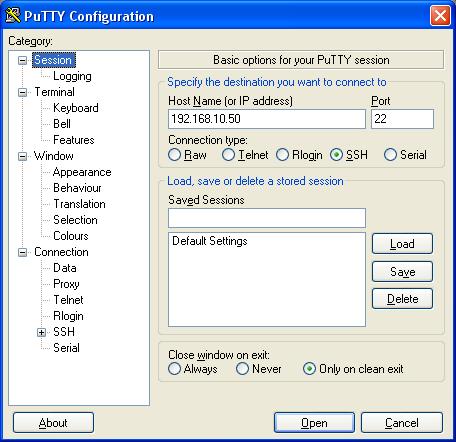
Connect to SSH server from Windows OS
***Download ssh client "putty" from HERE***
And type the SSH server ip address and hostname as below screenshot and click "open"

How to copy files using SSH

FREQUENTLY ASKED QUESTIONS
Q: How to copy files using SSH or via putty ?   (Linux)


           To copy files/directories over secure shell SCP command is used. SCP (Secure Copy) provides secure file transfer between machines. and also features encryption while transfer. This cause little bit slow than regular ftp and other protocols.


Copy a file from remote linux machine to local machine
#scp user@192.168.10.20:/home/user/Documents/new.txt /home/new/Desktop/
user@192.168.10.20's password:     (now input password of user)
new.txt                                   100%  794     0.8KB/s   00:00
#The above command copies the file "new.txt" from the remote system(ip=192.168.10.20) to Desktop


 Copy a file from local machine to remote linux machine.

[root@server ~#]scp /new/Doc/new.txt  james@192.168.10.20:/home/james/Desktop/
james@192.168.10.20's password:     (now input the password of james)
new.txt                                   100%  324     0.8KB/s   00:00
#The above command copies the file "new.txt" from the local machine to  remote system with ipaddress 192.168.10.20.
Note: If the username is not specified in the command, you will have to enter the root password of the remote machine. Can also transfer directories In the same way. 

How to Specify Port Numbers with SCP
         If the remote SSH server listens on a diffrent port than default 22/TCP. Then pecify that port number by using the " -P " switch. 
#scp -P 353 user@192.168.10.20:/home/user/Documents/new.txt /home/james/Desktop/
In the above command the remote servers(192.168.10.20) ssh port is 353/TCP

How to add SSH login banner

FREQUENTLY ASKED QUESTIONS
Q: How to add login banner for SSH server (warning banner) ?


Step1: Create a new banner file under /etc/ssh/ and add your Warning message.

[root@server ~#]vi /etc/ssh/banner           (sample of a warning message below)

*****************WARNING!!!************************
The use of this machine is restricted to authorized users only. All the activities on this SSH Server is logged.
#Now save the new banner file

Step2: Now specify the created banner file to "sshd_config" file
[root@server ~#]vi /etc/ssh/sshd_config
# In the 128th line,  enable the line by removing "#" , and specify the newly created banner file.
Banner /etc/ssh/banner
#( now save the "sshd_config" file)


Step3: Restart the SSH daemon
[root@server ~#]service sshd restart
SSH login banner example

How to secure SSH Server

(Secure Shell) is a most secure and designed to replace telnet, rlogin, rsh protocols. Now SSH is widely used as remote login protocol.  And a Linux Administrator must apply tough security for ssh connections by allowing authorized access and restrict unauthorized accesses. 


Disable root logins
Disable the root login via ssh is a first step to securing ssh service. So the no one can login as root (super user) from other networks via ssh protocol while allowing all other user accounts to login. Edit the server's ssh config file (example based on RPM based distributions like Redhat,CentOS,Fedora,etc.)
[root@server ~#]vi /etc/ssh/sshd_config
And in the 42nd Line, uncomment and disable the root login by...
PermitRootLogin no
[root@server ~#]service sshd restart


Block access by ipaddress filtering 
[root@server ~#]vi /etc/ssh/sshd_config
#In the 15th line uncomment and add the allowed apaddress or ipaddress range
ListenAddress 192.168.10.0/24           
(Here the connections from 192.168.10.0 to 192.168.10.255 will be accept and all the other connections will be blocked)
[root@server ~#]service sshd restart


Blocking unwanted access by iptables
Its possible to block unwanted access to ssh's port number in iptables(firewall). Add iptables rules to allow connection to allowed ipaddress and reject all other addresses
Here i allowed only accepting ssh connections on port 22/tcp from system 192.168.10.50.
Add the below lines to "iptables" config file
[root@server ~#]vi /etc/sysconfig/iptables
-A INPUT -s 192.168.10.50/255.255.255.255 -p tcp --dport 22 -j ACCEPT
-A INPUT -j REJECT
#(you can add more iptables rules to block unwanted accesses)
[root@server ~#]service iptables restart


Blocking unwanted access by hosts.allow file
[root@server ~#]vi /etc/hosts.allow
#Here add the ssh access allowed ipaddress like below (add to bottom)
sshd:192.168.10.100/255.255.255.255
#and finaly block all other access in "hosts.deny" file
[root@server ~#]vi /etc/hosts.deny
ALL:ALL                                               (add to bottom)


Change default SSH Port number
Most of the unknown ssh attacks will be to the SSH's default port 22/tcp. By changing the SSH port number from 22/tcp to a different port it will strengthen the ssh security.
[root@server ~#]vi /etc/ssh/sshd_config
Uncomment the 13th line and change port number
Port 1500          (now the ssh server will listen on port 1500/tcp)
[root@server ~#]service sshd restart


Disable TCP and X11 forwarding 
[root@server ~#]vi /etc/ssh/sshd_config
AllowTcpForwarding no
X11Forwarding no
#(save the ssh config file and restart ssh service)
[root@server ~#]service sshd restart

Monitor Users activity in Linux using Psacct

Psacct is a powerful tool to monitor what a user doing in command line or via ssh tunnel. Its a system administration tool which every linux asministrator needs. Psacct tool logs all commands/Application activity by all users in the system.


Install psacct in your rpm based system(sometimes its installed by default)
[root@server ~#]yum -y install psacct


Start psacct daemon
[root@server ~#]service psacct start
[root@server ~#]chkconfig psacct on            (add to system startup)


psacct commands
[root@server ~#]ac                         (print the total login time on the machine in hours)
[root@server ~#]ac james               (print the total login time of user james in hours)
[root@server ~#]ac -p                    (print the total login time of all users in hours) 
[root@server ~#]ac -d                     (print the daywise total login time on the machine in hours)
[root@server ~#]ac -d james          (print the daywise total login time of user james in hours)


[root@server ~#]sa                         (summarize all account activity information)


[root@server ~#]last -i                   (print all users login history)


[root@server ~#]lastcomm james             (print the total commands executed by the user james)
[root@server ~#]lastcomm james >/tmp/commands.txt      (save the output to a text file)
lastcomm command output parameters
S    Executed as superuser
F    Executed after, but not the following exec
X   Execution terminated with a signal "SIGTERM"
D   Execution terminated with a core file

Configure SSH(Secure Shell)

Steps to Configure SSH server in linux

step1: Edit the sshd config file located in /etc/ssh/sshd_config
[Note: in the directory /etc/ssh/  sshd_config is ssh server configuration, and ssh_config is ssh client configuration]

[root@server ~#]vi /etc/ssh/sshd_config
#Note: Enable the below 3 lines by removing ‘#’ ; ( change to ‘yes’ to below line if you need root login)
PermitRootLogin no
PermitEmptyPasswords no
PasswordAuthentication yes


step2: Start the ssh service
[root@server ~#]service sshd start


step3: Add ssh to startup
[root@server ~#]chkconfig sshd on


step4: Login to ssh server from  linux hosts
[root@server ~#]ssh<space> <ipaddress>
or can access from windows machines via putty and type the hostname/ipaddress and click Open.
Putty for windows Download link


Note: By default ssh server will listen on port tcp/22. So need to open tcp/22 port in firewall or Disable the firewall(disabling firewall is insecure).

Related Posts Plugin for WordPress, Blogger...

 
Design by Free WordPress Themes | Bloggerized by Lasantha - Premium Blogger Themes | Bluehost Coupons