Showing posts with label Windows. Show all posts

Remove shadow desktop icons XP

FREQUENTLY ASKED QUESTIONS (Linux)
Q: How to remove shadow on desktop icons on Windows XP?

Step by step instructions
Step1: Go to "My computer Properties"
Step2:  "Advanced"

Step3:  Performance "Settings"
Step4: And On Visual effects tab,  Check "Use drop shadows for icon labels on the desktop"

"telnet" is not recognized as internal or external command, operable program or batch file

In latest windows operating systems like Windows 2008 Server, 2012 Server, Windows 8, Windows 7, etc "telnet" is not preinstalled with windows, so you need to install the telnet client manually.

Installing Telnet Client in Windows Server 2008 R2, 2012 server.
"Start" -> "Administrative Tools" -> "Server Manager" -> "Features" -> and click "Add Features" -> select "Telnet client" and click "Next" -> "Install".

Installing Telnet Client on Windows using commands
The below command will install and enable telnet client in windows operating systems.
C:\Users\Administrator>pkgmgr /iu:"TelnetClient"

Telnet client: Windows 2008 R2, 2012 Server, Windows 7, Windows 8, Vista

FREQUENTLY ASKED QUESTIONS (Windows)
Q: How to enable telnet command in Windows 2008 R2 server?

C:\Users\Administrator>telnet
"telnet" is not recognized as internal or external command,
operable program or batch file.
By default telnet is not preinstalled in Windows 2008 R2, Windows 2012 Server, Windows 7, Windows 8 and Windows Vista. You can install the telnet client with the command below

Applies to: Windows7, Windows Vista, Windows XP, Windows 2003, Windows 2008 R2 Server, Windows 8.
Install Telnet client using command line
C:\Users\Administrator>pkgmgr /iu:"TelnetClient"
Done, now wait for few seconds and try with "telnet" commands.... 

Print all File names in a folder to a text file (For Linux and Windows)

FREQUENTLY ASKED QUESTIONS (Linux)
Q. How can i print the file names of a folder into a text file.?
Q. How to print the dir/ls command output to a text file?

You can copy all file names in a folder/directory to a text file with the help of command prompt in windows and with command terminal in linux systems.
-->
After running the command, the output will write to a text file and save to current directory. The command is same for Linux and windows.

In Windows Operating systems(Windows 7,8, XP, Vista, 2008))
Open command prompt and run the below command
Command Usage:
C:\>dir <folder> >filename.txt
Example:
C:\>dir d:\Files\ >filename.txt

In Linux Operating systems(Redhat, CentOS, Fedora, Ubuntu, etc)
Open terminal and run the below command
Command Usage:
# ls > filename.txt
Example:
# ls /home/admin/ > contents.txt

[SOLVED] Make Deleted Datas Unrecoverable. Preventing Recovery of Deleted Data

FREQUENTLY ASKED QUESTIONS (Data Recovery)
Q: How to Make a Hard drive/USB Pendrive's deleted data Unrecoverable?

       Cipher is a command-line tool in Windows operating systems to manage A hard drive's Encryption level. You can encrypt and decrypt files and folders using Cipher.exe command tool.
Cipher tool also can permanently alter or wipe the free spaces of a drive and make its previously deleted data unrecoverable. Cipher will erase all the free spaces in the drive, So no one can recover the old and previously deleted data from that drive with any data recovery software. But the Cipher will not delete the current contents in the drive, it always erase the free space only. So you will not loose any files in the drive. Cipher tool will be pre installed with all windows operating systems. Always use this tool with a latest version of windows OS like Windows 7, Windows 8, Vista, 2008, etc.

Important

  1. Before executing the Cipher command you should close all other running application on Windows.
  2. The process of wiping datas in the drive my take several minutes, sometimes hours, and depends on the drive volume.
  3. Only use the Cipher's "/W" switch in emergency situations.
  4. Taking a backup of your important files is recommended.  

Command Usage
C:\>cipher /W:G:\                (Here "G" is your hard drive or pendrive or a memory card)


Pandora Data Recovery Software for Windows Review

      Pandora is a good, simple and useful data recovery application for Windows operating systems like Windows 8, Windows7, XP, Vista, 2003 and 2000 etc. You can recover your lost files by browsing the entire disk by folder/file wise which will show  only the deleted files to recover.
You can also recover deleted files by searching the file types like pictures, emails, documents, videos, etc, and can recover by a Surface scan feature also. Pandora also comes with a portable version of application which does not require any installation and carry in a portable USB drives.

Pandora Features
  • Supports FAT16, FAT32, NTFS, NTFS5 and NTFS/EFS
  • Works with Windows Vista, XP, 2003 and 2000
  • Recover Pictures, Documents, Videos, etc.
  • Recover Hidden, Encrypted, Archived and Compressed files
  • Can Browse, Search, Preview and Recover your deleted files
Get Pandora for Free

[SOLVED]Recovering Deleted Files With Recuva for Windows

     Recuva is a free data recovery application for Windows running computers. With Recuva you can restore or recover your old and deleted files from your computers hard disk, USB pendrive , flash drives, ipod, etc.
The Recuva is most useful when you accidentally deleted an important data or a file from your drives. You can install Recuva with simple installation steps and make it ready to recover your files.

You can recover the files by searching the file types like pictures, videos, documents, music, emails, compressed files, etc in your whole system drives or a specified location. You can search the lost files in removable medias also. And after scanning the specified location Recuva will display the result of scanning and you can recover the file by saving to a safe location. Recuva also providing a thumbnail preview of images for faster recovery. And Recuva also can recover from formated drives. Recuva will works with Windows 7, Windows 8, Vista, XP, etc.

Recuva Features
  • Recover deleted files from your PC
  • Data Recovery from a formated Drive
  • Recovery of Deleted Emails, Music, Videos, Documents, etc.
  • Lets you to securely delete your file to make unrecoverable.
  • Recuva comes with a portable version
  • Works with Windows 8, XP, Windows 7, Vista, 2008/2008 Server.
For more details: http://www.piriform.com/recuva

Windows Server 2012 Release Date: 4th September 2012

Microsoft's latest server class operating system "Windows Server 2012" codenamed as Windows Server 8" will release on 4th September this year. This is the successor version of Windows 2008 R2 Server. Features new Metro style UI (Similar to Windows 8), Support for Cloud computing, Active Directory, Hyper-V, ReFS file system, IIS 8.0, etc.

Windows Server 2012 Release Date: 4th September 2012

Get Windows 8 with 90 Days Free Trial

Microsoft's latest operating system Windows 8 Trial Version is now available to download with 90days free trial period. Which is an Enterprise edition of Windows 8 and 30bit and 64bit editions are available. This 90days trial is intended for Application developers and IT Professionals.
The official Microsoft Windows 8 release date is scheduled on 26 Oct 2012.

Windows 8 Trial Minimum System Requirements
  • Processor: 1GHz or faster
  • Memory: 1 GB for 32-bit or 2 GB for 64-bit
  • Hard disk space: minimum 20 GB to install Windows 8
Direct download link from Microsoft corporation


How to Find Process ID (PID) in Windows

FREQUENTLY ASKED QUESTIONS(Windows)
Q. How do i find Process ID (PID) in Windows operating systems ?

Each process must have a unique process ID in all windows operating systems like Windows 7, 8, XP, 2003, 2008 servers. You can find that PID from Task Manager's process tab or by executing a command in command prompt.

Finding the Process Id (PID) of a windows process. Using tasklist command you can list all the running process in the system. And you can get the PID of each process from the command output.
C:\>tasklist

Click on the screenshot to enlarge


Find the Process Identifieer (PID) from Task Manager
Steps: Open the task manager and select the "Process" tab.
Now select "View" from menu (on top) and select "Select Columns..."
Now tick "PID (Process Identifier)" and click "OK"
Click on the screenshot to enlarge

TaskKill: Kill a Process in Command Prompt in Windows 7/XP

FREQUENTLY ASKED QUESTIONS (Windows)
Q. How to kill/stop a process a process in windows using command prompt ?

Killing or terminating a process without a task manager is possible using "taskkill" commands in Windows operating systems like Windows 7, XP, 2003/2008 servers. Taskkill is a powerfull command to kill or terminating (forcefully) any running process.

Windows Kill a Process by Process Name
C:\>taskkill /IM mspaint.exe
Click on image to enlarge


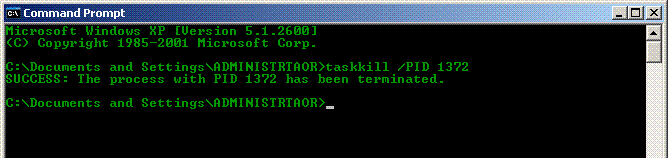
Windows Kill a process by pid (Process ID)
Click Here to learn How to find Process ID in Windows
C:\>taskkill /PID 1372
Click on image to enlarge

How to Check Oracle Edition is Standard or Enterprise

FREQUENTLY ASKED QUESTIONS (Oracle)
Q.How to Check/find if Oracle version is Standard or Enterprise edition ?

Sometimes you need to find the version and Edition of Oracle database installed on your server. There are few ways to find the Oracle version. You can find Oracle version complete Information from SQLPlus, Registry,query, etc..

Recognize Oracle Stardard Editions (SE)

Login into SQL Plus via command prompt and after typing username and password there will be a banner message like below. And it not specified as any Editions ? It must me a Standard Edition.

Connected to:
Oracle Database 11g Release 11.1.0.6.0 - 64bit Production.

Above connected to is a Standard Edition(SE) of Oracle.(Not specified any Editions particularly)


Find Oracle Version details from SQLPlus
SQL> select * from v$version;


Recognize Oracle Enterprise Editions (EE)
Login into SQL Plus via command prompt and after typing username and password there will be a message like below. It must particularly specified as an Enterprise Edition Oracle release.


Connected to:
Oracle Database 11g Enterprise Edition Release 11.1.0.6.0 - 64bit Production.
With the Partitioning, OLAP and Data Mining options


Above is an  Enterprise Edition (EE) of Oracle. (Specified as Enterprise Edition particularly)
You can also do the above query.

Find Oracle Edition from Windows Registry (7, XP,2003, 2008)
Navigate to "HKEY_LOCAL_MACHINE" ->   "SOFTWARE"  ->  "ORACLE"    and click on  "KEY_OraDb11g_home1" and you can find the Edition on the right side (see below screenshot).
as ORACLE_BUNDLE_NAME


Explain Windows Registry Hives: Windows Registry Tutorial

      Windows system registry is the database of all the settings, configurations and preference of all installed applications, user accounts, hardwares and overall settings in the operating system. Registry also contains the settings and preferences of each user account in the operating system. Whenever we make a change in the operating system like installation or uninstillation of softwares, modifying control pannel setings, system policies, user preferences, all the changes are also stored in the system registry.

      You can modify or edit registry by using any registry editor tools (eg: regedit). Go to "Run" and type "regedit" and you can get access to Windows Registry. You should have an administrator previleged user account to modify windows registry. And before modifying registry values and entries i strongly recommend to take a backup of current windows registry data.

Windows registry branches
The five main branches of windows registry are HKEY_CLASSES_ROOT, HKEY_CURRENT_USER, HKEY_LOCAL_MACHINE, HKEY_USERS, HKEY_CURRENT_CONFIG.

HKEY_CLASSES_ROOT
Contains information about all the file extension association maping for supporting grag and drop feature. Also contains preferences about Programatic identifier,Class ID, Interface ID, Windows user interface, etc.

HKEY_CURRENT_USER
Contains the informations about user profile of current logged in user. Including Logon names, Start menu settings, personalised settings, desktop settings, etc.

HKEY_LOCAL_MACHINE
Contains the information about softwares and hardwares. Including Hardware profiles, hardware device drivers, system RAM, start-up parameters, etc.

HKEY_USERS
Includes the user specific data like preferences of each user in the system.

HKEY_CURRENT_CONFIG
Stores the current using hardware profiles in the system. 

Windows 8 Upgrading Plans at $39.99

Microsoft introduced a record low cost plan $39.99 for upgrading your current Windows operating systems even an XP to the latest Windows 8 Pro. All you need to go to the Windows website and pay and download the Windows 8 Pro and also buy the DVD from a sale outlet of order the DVD from an online seller.

And also Microsoft allows to upgrade your Windows 7 to Windows 8 at $14.99.

Windows 8 Release Preview: Features List, Download link And Review

1 June 2012 Friday

          Yesterday Microsoft released the "Windows 8 Release Preview"  and available to download in 14 languages. Microsoft says this is the last pre-release release of Windows 8. The new Release preview has more features than previous including hundreds of new and updated apps. Including Apps accessing SkyDrive Cloud, Hotmail, Messenger, and lots more. The new Release preview supports multi-touch gestures on touch screen based tablet computers. Multi-touch enables you to use Pinch zooming and two finger scrolling.

The supported languages are English, Arabic, Chinese (Simplified), Chinese (Traditional), French, German, Japanese, Korean, Portuguese, (Brazil), Russian, Spanish, Swedish, Turkish. Windows 8 Release Preview available in 64bit and 32bit platforms and are sizes about 3.3Gb and 2.5Gb for 64bit and 32Bit ISO image respectively.

Windows 8 Release Preview Features
  • Internet Explorer 10 (with Metro UI)
  • Apps for Messenger and SkyDive
  • New updated Windows 8 Apps
  • Supports multi-touch (pinch to zoom, two finger scroll)
System Requirements
As per Microsoft, the minimum system hardware requirements for running Windows 8 
Release Preview are..
  • 1 gigahertz (GHz) or faster Processor
  • 1 gigabyte (GB) (32-bit) or 2 GB (64-bit) RAM Memory
  • 16 GB (32-bit) or 20 GB (64-bit) Free disk space for installation 
  • Graphics card: Microsoft DirectX 9 graphics device with WDDM driver
Additional requirements to use certain features
  • A tablet or a monitor that supports multitouch to use Touch screen imput
  • Display device with a screen resolution of at least 1024 x 768.
  • To snap apps, you need a screen resolution of at least 1366 x 768.
Download Windows 8 Release Preview
  You can download the official Release preview from the below listed url. As mentioned above you can select the OS from 14 languages. You need to download the suitable ISo image and burn into a DVD or a USB Flash Drive(minimum 4Gb) and install. Select the OS atchitecture(64bit/32bit) by considering your current computer hardware. Always backup your important data before installation. 


Download Link: http://windows.microsoft.com/en-US/windows-8/iso


Windows 8 Release Preview Product Key: TK8TP-9JN6P-7X7WW-RFFTV-B7QPF

Windows 7 BitLocker Setup With TPM

          BitLocker is one of the most powerful security feature in Windows 7 and Windows Vista. BitLocker allows the user to encrypt an entire drive in a computer.

The bitLocker uses AES encrypting algorithms to encrypting the drive and its files inside with TPM (Trusted Platform Module). This encryption ensure the files in the drive safe even if it is lost or stolen. You can use a password or smart card to unlock an BitLocker encrypted drive.

Steps to Enable BitLocker Encryption
Step1:
Go to "My computer" Right click on a drive and click on "Turn on BitLocker..."

Step2:
Check "Use a password to unlock the drive" and input a new drive unlocking password.

Step3:
Select "Save the recovery key to a file" (for unlocking drive if you lost the password) and save the recovery key to USB storage or any other drives and click "Next"


Step4:
Now click on "Start Encrypting"  (take few minutes depending upon the volume of files)


And now the BitLocker Drive Encryption is enabled for the drive.

To unlock the Encrypted Drive and access files
Double click on the Drive and give the password (which you already set in step:2)
And click "Unlock"


BitLocker Management
             To manage BitLocker Encryption you need to right click on the BitLocker enabled drive and click on "Manage BitLockerAnd there you can Change the BitLocker unlocking password, or completely remove BitLocker password, Smart card management, download or print recovery key file, and Enabling Automatically unlock this drive only on your computer. 

How To Add Shutdown/Restart Tile In Windows 8 Metro UI

FREQUENTLY ASKED QUESTIONS (Windows8)
Q: How to create Shutdown/Restart Tile in Windows8?

A Shutdown/Restart shortcut Tile in the METRO UI Startmenu in makes the Shutdown/Restart easy. The Windows 7/Vista/XP users are still feel little bit difficult in finding the Shutdown/Restart option in Windows 8 Metro UI Start menu.


Step1: Open Run (Press WinKey+R) and Type below location OR Browse to this folder location. 
C:\Users\[USERNAME]\AppData\Roaming\Microsoft\Windows\Start Menu\Programs


Step2: Create a new shortcut by Right click and select New Shortcut
Type the location of the item: C:\Windows\System32\shutdown.exe -s -t 0
Use for Restart function C:\Windows\System32\shutdown.exe -r -t 0 
Click on screenshot to enlarge
Type a Name for the Shortcut and Finish.


Step3: Go to Start Menu and you will see the newly created shutdown Short-cut
Click on screenshot to enlarge


Dual Boot Windows 8 With Windows 7, Vista or XP Professional

The Windows 8,  Microsoft's all new OS is now available in beta mode as "Consumer Preview". If you have running Windows 7/Vista/XP in your Laptop or Desktop You can still Install Windows 8 Consumer Preview along with Windows 7 or Windows Vista or Windows XP. You need not to remove your current OS to try Windows8. And you can able to boot to your previous OS after installing Windows 8 with a OS selection menu.
If you not yet downloaded Windows 8 ISO images, Download the sutable 64bit or 32bit ISO images from below Download link.
Download Windows 8 Consumer Preview ISO


You need to burn a DVD with the ISO images or create a bootable USB Device to Install Windows 8 Consumer preview.

  • Backup all your Data to External drives or DVDs are recommented.
  • Restart the System and boot from DVD/USB with Windows 8 Setup.
  • When asking the Installation Type as Which type of installation do you want? Select "Custom" (Do not select Upgrade, if selected windows will replace your current OS)
  • Create a New Disk partition with a minimum of 20GB of size.(keep your Windows 7 partition untouched )
  • Install the Windows 8 into the NEW Partition (newly created in above step)
  • After completing the Installation process successfully, you will get a Boot OS selection menu like below screenshot. (You can change the Default Boot target from Windows 8 to Windows 7 or XP like that...)

As i installed the Windows 8 Consumer preview with my Windows XP professional
My Windows 8 OS selection menu is displayed above.
And i can still Boot to Windows XP after installing Windows 8 Consumer preview.


Change Default Boot Target OS
You can change the Default boot target by selecting the option "Change default or choose other options" from above screenshot while it displays in your computer.
Or run the command "msconfig" from Run
and select the "Boot" tab and there you can customize the Windows 8 Boot Loader. 

How To Find Mac Address In Windows 8

FREQUENTLY ASKED QUESTIONS (Windows 8)
Q: How to find NIC card Mac Address in Windows 8 ? 

Steps to find the MAC Address of NIC cards in Microsoft Windows 8 Operating System

Step1: Go to "Run" (At any time press WinKey + R)
and Run "ipconfig /all"
Click on screen-shot to enlarge
Know MAC address of Other computers in the same network in Windows 8
Go to Run
Type "arp -a" and press Enter key.
C:\>arp -a

Download Windows 8 Consumer Preview ISO Image Free

Microsoft just officially released the all new Windows 8 Consumer preview for all of us. Consumer preview is released in both 32bit and 64 bit architectures. You must select the architecture (32bit or 64bit) as per your machine's hardware configuration.


Is My Hardware Compatible for Windows 8 ?
If you are not sure about your machine's hardware configuration, download the exe from the below link and that will tell you which Windows 8 architecture is compatible for your hardware.
exe download Link

To install you need to download the iso file from the below links and burn in to DVD or USB flash.
Official Windows 8 Consumer Preview ISO Download Links from Microsoft Corporation.


Windows 8 Consumer preview Product Key: DNJXJ-7XBW8-2378T-X22TX-BKG7J


Download 32Bit ISO files (Recommended)
Windows 8 Consumer preview 32Bit (English) 2.5GB
Windows 8 Consumer preview 32Bit (Chineese Simplified) 2.6GB
Windows 8 Consumer preview 32Bit (French) 2.5GB
Windows 8 Consumer preview 32Bit (German) 2.5GB
Windows 8 Consumer preview 32Bit (Japanese) 2.5GB


Download 64Bit ISO files (Need 64bit capable Hardware)
Windows 8 Consumer Preview 64Bit (English) 3.3GB
Windows 8 Consumer preview 64Bit (Chineese Simplified) 3.4GB
Windows 8 Consumer preview 64Bit (French) 3.3GB
Windows 8 Consumer preview 64Bit (German) 3.3GB
Windows 8 Consumer preview 64Bit (Japanese) 3.3GB

Related Posts Plugin for WordPress, Blogger...

 
Design by Free WordPress Themes | Bloggerized by Lasantha - Premium Blogger Themes | Bluehost Coupons